User guide
Overview
TABS is a project centric desktop application specially designed to manage contacts, groups and tasks within members of the group. TABS’s target users are student project team leaders who are facing issues with group management and task allocation.
TABS aims to help project team leaders by
- Simplifying the group management process.
- Providing an overview of tasks assigned to members.
Individuals with a fast typing speed will benefit more because TABS optimized for use via a Command-Line Interface (CLI) while still having the benefits of a Graphical User Interface (GUI).
Feature Overview
The features of TABS are as such:
- Person management features - covering how to manage Persons in TABS.
- Group management features - covering how to manage Groups, which consists of Members in TABS.
- Task management features - covering how to manage Tasks amongst Members.
- Miscellaneous features - other features for convenience.
Difference between member and person:
- The terms member and person are different. A person is someone who is registered in TABS. A member is a person who is part of a specific group.
- i.e Alex is a person, but he is not a member of Group 1. He is however a member of Group 2.
- In order to add Members, the persons have to be present in TABS under Contacts.
- On deletion of Members in Groups, the corresponding Contacts of the person will still remain.
Structure of this Document
This document is structured chronologically so that you can follow through with this guide while using the product.
Please refer to the Table of Contents if you are lost at any point of time.
Table of Contents
- 1. Quick start
- 2. Reading the Document
- 3. Features
- 4. Glossary
- 5. Command summary
1. Quick start
- Ensure you have Java 11 or above installed in your Computer.
- Download the latest TABS.jar from here.
- Copy the file to the folder you want to use as the home folder for your TABS.
- Double-click the file to start the app. The GUI similar to the one below should appear in a few seconds.
Note how the app contains some sample data.
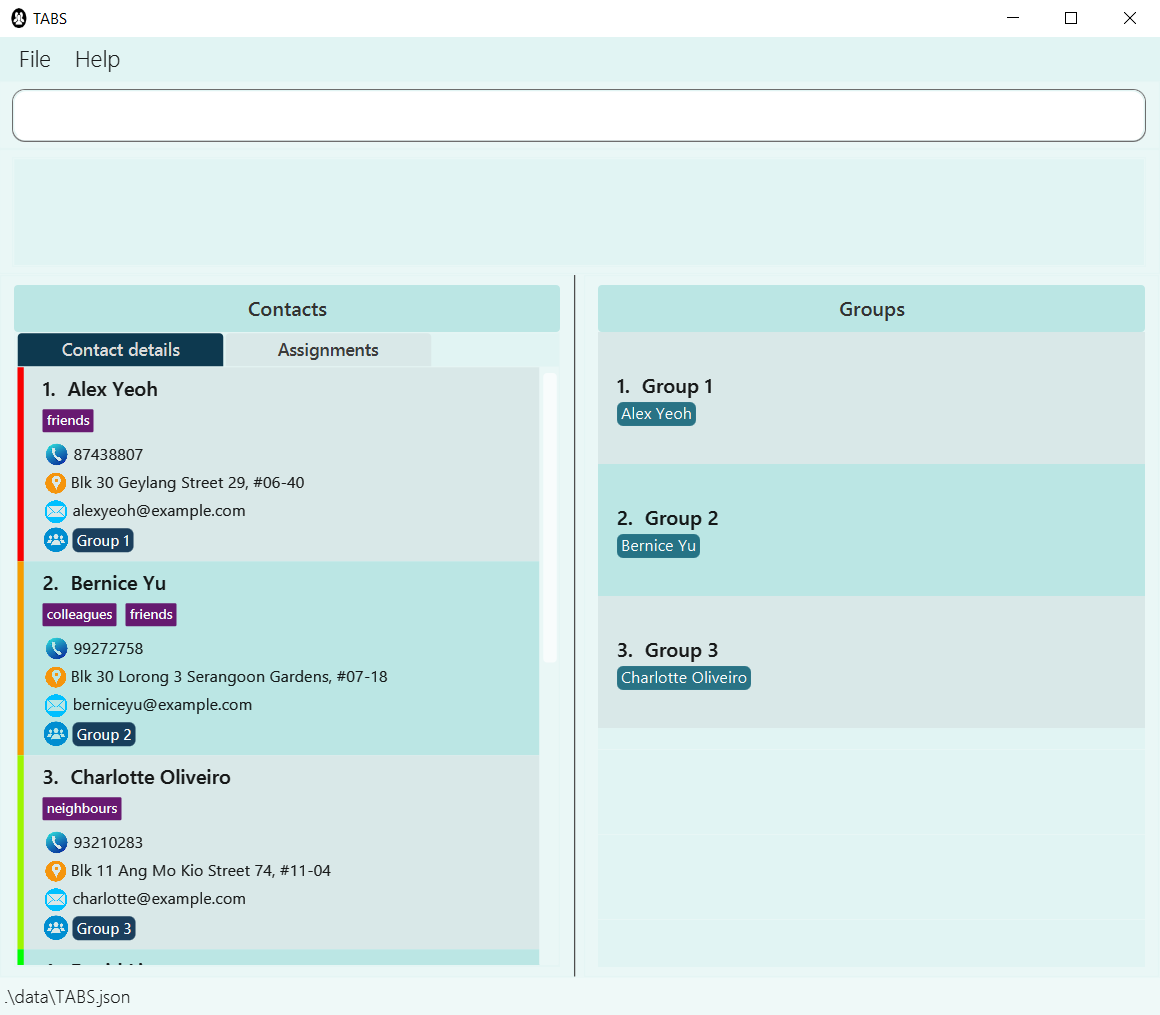
- Refer to the Features below for details of each command.
2. Reading the Document
This section will introduce you to the different symbols and syntax used throughout the guide, as well as provide an overview of the features and GUI interface of TABS.
2.1 Text Style
Text that appear as this form refers to special terms related to TABS.
2.2 Special Boxes
Additional Information
Text that appears in an information box indicates additional information that is good to know.
 Note: Sample information.
Tip
Text that appears in a tip box is useful information that can be used to improve your experience with TABS.
 Tip: Sample Tip
2.3 GUI Interface
The images below show the sections of the TABS user interface.
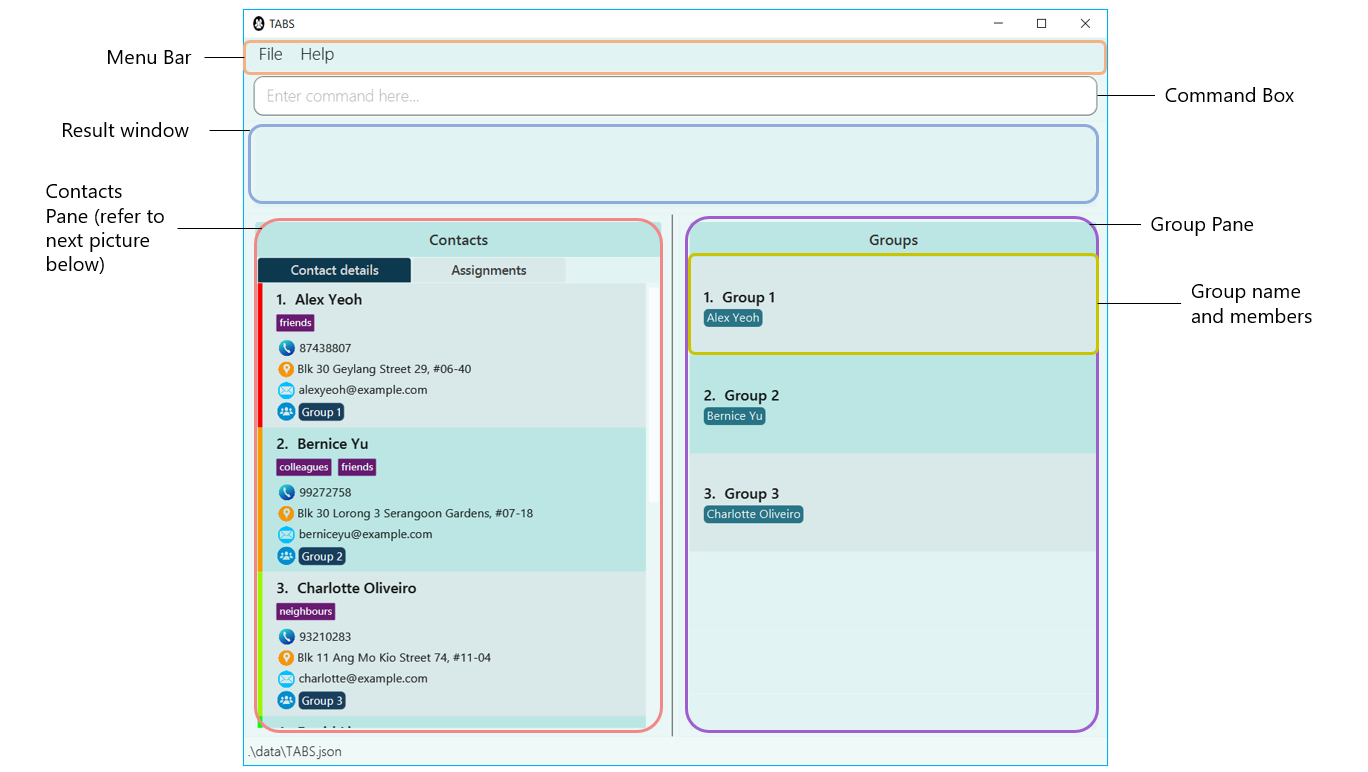
Overview of the sections in the main window:
| Section | Role |
|---|---|
| Menu Bar | Display menu items File and Help |
| Command Box | To type the commands |
| Result Window | Displays the result of user input |
| Contacts Pane | Contains the list of persons in TABS |
| Group Pane | Contains the list of groups in TABS |
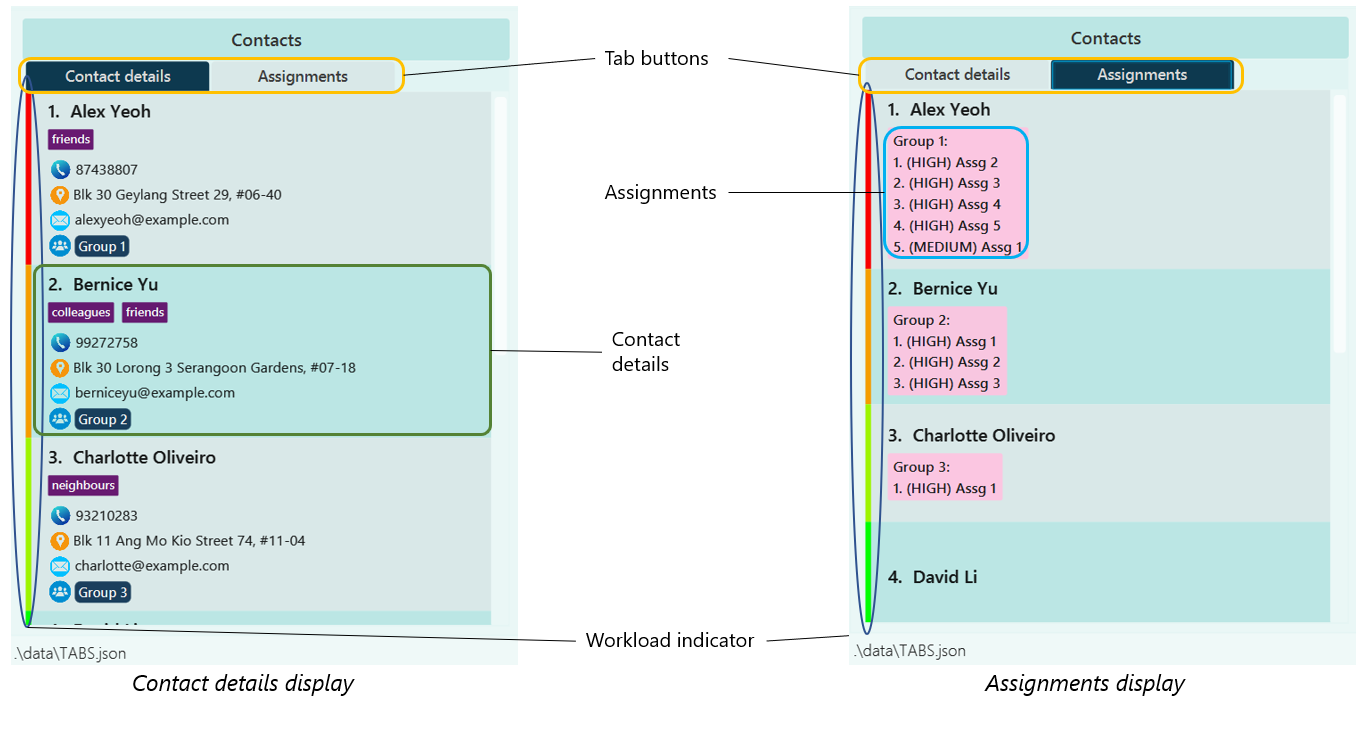
Overview of the sections in the contacts pane:
| Section | Role |
|---|---|
| Tab Buttons | Switch between Contact details and Assignments |
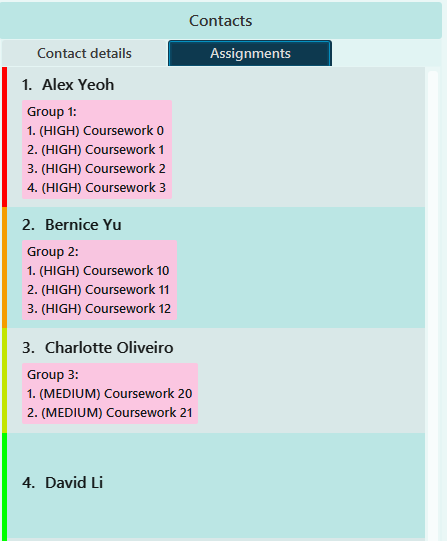
| Assignments | Contains the assignment allocated to the person sorted by group |
| Contact details | Contains the person’s information |
| Workload indicator | Calculated workload of the person’s assignments based on priority |
-
Use the
TABkey to navigate between command box, person pane, and group pane in TABS. -
Use arrow keys to switch between Contact details and Assignments.
2.4 Command Format
-
Words in
UPPER_CASEare the parameters to be supplied by the user.
e.g. inaddperson n/NAME,NAMEis a parameter which can be used asaddperson n/John Doe. -
Items in square brackets are optional.
e.gn/NAME [t/TAG]can be used asn/John Doe t/friendor asn/John Doe. -
Items with
… after them can be used multiple times including zero times.
e.g.[t/TAG]…can be used ast/friend,t/friend t/familyetc. -
Parameters can be in any order.
e.g. if the command specifiesn/NAME p/PHONE_NUMBER,p/PHONE_NUMBER n/NAMEis also acceptable. -
If a parameter is expected only once in the command but you specified it multiple times, only the last occurrence of the parameter will be taken.
e.g. if you specifyp/12341234 p/56785678, onlyp/56785678will be taken. -
Extraneous parameters for commands that do not take in parameters (such as
listpersons,exitandclear) will be ignored.
e.g. if the command specifieslistpersons 123, it will be interpreted aslistpersons. -
Commands involving the parameter
NAMEis case-sensitive, theNAMEspecified must be exactly the same as the one stored in TABS.
2.5 Prefixes
| Prefix | Field |
|---|---|
| n/ | NAME |
| p/ | PHONE |
| e/ | |
| a/ | ADDRESS |
| t/ | TAG |
| g/ | GROUP |
| task/ | TASK |
| w/ | WORKLOAD |
| d/ | DEADLINE |
3. Features
3.1 Contact Features
This section covers commands related to Contacts.
3.1.1 Adding a person: addperson
Adds a person to TABS.
Format: addperson n/NAME p/PHONE_NUMBER e/EMAIL a/ADDRESS [t/TAG]…
Tip: A person can have any number of tags (including 0)
Extra note:
A person’s email must be in the form of local-part@domain, where the domain
specified must be at least 2 characters long.
Examples:
addperson n/John Doe p/98765432 e/johnd@example.com a/John street, block 123, #01-01addperson n/Betsy Crowe t/friend e/betsycrowe@example a/Newgate Prison p/1234567 t/criminal
3.1.2 Deleting a person: deleteperson
Deletes the specified person from TABS.
Format: deleteperson NAME
- Deletes the person with the specified
NAME. The person with thisNAMEmust already exist in the app.
Examples:
-
deleteperson Betsydeletes the person with the usernameBetsy. -
deleteperson Betsy Hooverdeletes the person with the usernameBetsy Hoover.
3.1.3 Editing a person: editperson
Edits an existing person in TABS.
Format: editperson NAME [n/NAME] [p/PHONE] [e/EMAIL] [a/ADDRESS] [t/TAG]…
- Edits the person with the specified
NAME. The person with thisNAMEmust already exist in the app. - At least one of the optional fields must be provided.
- Existing values will be updated to the input values.
- When editing tags, the existing tags of the person will be removed i.e adding of tags is not cumulative.
- You can remove all the person’s tags by typing
t/without specifying any tags after it.
Examples:
-
editperson John Doe p/91234567 e/johndoe@example.comEdits the phone number and email address ofJohn Doeto be91234567andjohndoe@example.comrespectively. -
editperson BetsyCrower n/Betsy Crower t/Edits the name ofBetsyCrowerto beBetsy Crowerand clears all existing tags.
3.1.4 Locating persons by name: findperson
Finds persons whose names contain any of the given keywords.
Format: findperson KEYWORD [MORE_KEYWORDS]
- The search is case-insensitive. e.g
hanswill matchHans - The order of the keywords does not matter. e.g.
Hans Bowill matchBo Hans - Only the name is searched.
- Only full words will be matched e.g.
Hanwill not matchHans - Persons matching at least one keyword will be returned (i.e.
ORsearch). e.g.Hans Bowill returnHans Gruber,Bo Yang
Examples:
-
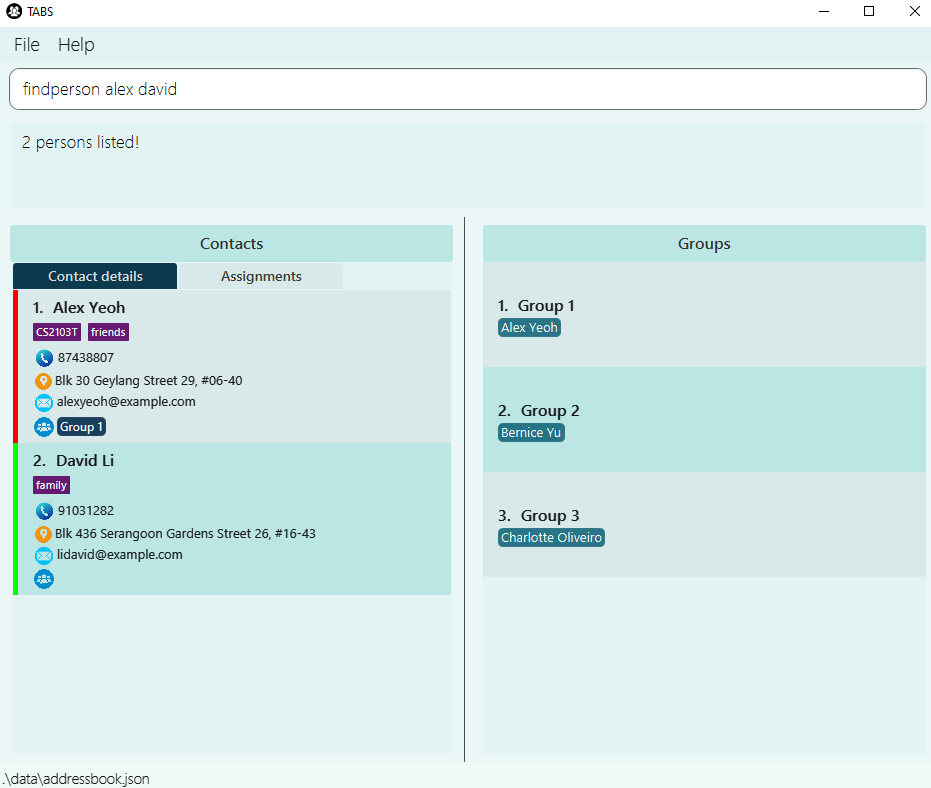
findperson JohnreturnsjohnandJohn Doe -
findperson alex davidreturnsAlex Yeoh,David Li
3.1.5 Listing all persons: listpersons
Shows a list of all persons in TABS.
Format: listpersons
3.2 Group Features
This section covers commands related to Groups.
3.2.1 Adding a group: addgroup
Adds an empty group with the specified GROUP to TABS.
Format: addgroup g/GROUP
Examples:
-
addgroup g/CS2103Twill create an empty group with the group nameCS2103T.
3.2.2 Deleting a group: deletegroup
Deletes the specified group with the group name GROUP from TABS.
Format: deletegroup g/GROUP
Examples:
-
deletegroup g/CS2103Tdeletes the groupCS2103Tfrom TABS.
3.2.3 Adding a member to a group: addmember
Adds a member to a specified group.
Format: addmember g/GROUP n/NAME
Examples:
-
addmember g/CS2103T n/John Doewill addJohn Doeto the groupCS2103T. -
addmember g/CS2101 n/Alicewill addAliceto the groupCS2101.
3.2.4 Deleting a member from a group: deletemember
Deletes an existing person from an existing group in TABS.
Format: deletemember g/GROUP n/NAME
Examples:
-
deletemember g/CS2103T n/John Doewill delete memberJohn Doefrom the groupCS2103T. -
deletemember g/CS2101 n/Alicewill delete memberAlicefrom the groupCS2103T.
3.2.5 Display a group: displaygroup
Displays the group members allocated to the specified GROUP.
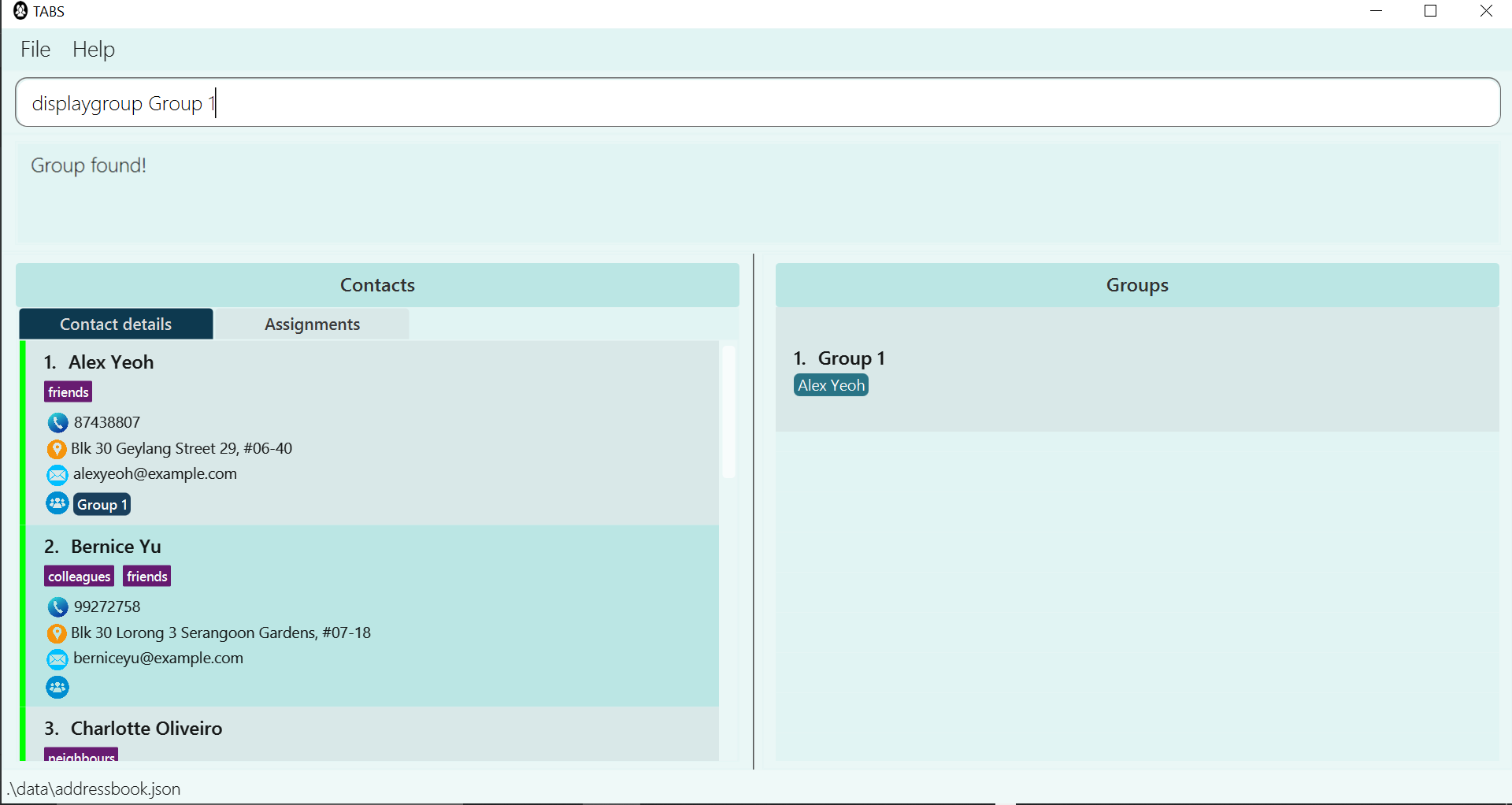
Format: displaygroup GROUP
- Displays the members associated with the
GROUP.
Examples:
-
displaygroup CS2103Tdisplays the members associated withCS2103T.
3.2.6 Listing all groups: listgroups
Lists all existing groups in TABS.
Format: listgroups
3.3 Task Features
This section covers commands related to Tasks.
3.3.1 Assigning a task to a member: assigntask
Assigns a task to a member with the given name in a group in TABS.
Format: assigntask NAME g/GROUP task/TASK w/WORKLOAD [d/DEADLINE]
- Assigns a
TASKto a person with the specifiedNAME,GROUP,WORKLOADandDEADLINE. -
WORKLOADspecified must below,mediumorhighand is case-insensitive. -
DEADLINEmust be inyyyy-MM-ddoryyyy-MM-dd HH:mmformat.
Examples:
-
assigntask John g/CS2103T task/TeamProject w/HighassignsJohnin groupCS2103Twith aHighworkload taskTeamProject. -
assigntask Alice g/Group Alpha task/Coursework 0 w/Low d/2022-01-01 23:59assignsAlicein groupGroup Alphawith aLowworkload taskCoursework 0and the deadline of the task is2022-01-01 23:59.
Extra note:
A workload indicator is shown beside each person in TABS.
When the workload of the person increases, the workload indicator will gradually change from green to red.
3.3.2 Deleting a task from a member: deletetask
Deletes a task from a member with the given name in a group.
Format: deletetask NAME g/GROUP task/TASK
- Deletes a
TASKfrom a person with the specifiedNAMEand specifiedGROUP.
Examples:
-
deletetask John g/CS2103T task/TeamProjectdeletes taskTeamProjectfrom personJohnin groupCS2103T. -
deletetask Billy g/Team Delta task/Delta ProjectdeletesDelta Projectfrom personBillywithin groupTeam Delta.
3.3.3 Assigning a task to all members: assigntaskall
Assigns a task to all members in a group. Members with the same task are ignored.
Format: assigntaskall g/GROUP task/TASK w/WORKLOAD [d/DEADLINE]
- Assigns a
TASKto all members with the specifiedGROUP,WORKLOADandDEADLINE. -
WORKLOADspecified must below,mediumorhighand is case-insensitive. -
DEADLINEmust be inyyyy-MM-ddoryyyy-MM-dd HH:mmformat.
Extra note:
assigntaskall will not add the specified TASK to members of the group if they have a task with the same name as the one being assigned,
even if the WORKLOAD and DEADLINE of the new task is different.
Examples:
-
assigntaskall g/CS2103T task/TeamProject w/Highassigns all members in groupCS2103Twith aHighworkload taskTeamProject. -
assigntaskall g/Group Alpha task/Coursework 0 w/Low d/2022-01-01 23:59assigns all members in groupGroup Alphawith aLowworkload taskCoursework 0and the deadline of the task is2022-01-01 23:59.
3.3.4 Deleting a task from all members: deletetaskall
Deletes a task from all members in a group. Members without this task are ignored.
Format: deletetaskall g/GROUP task/TASK
- Deletes a
TASKfrom all members with the specifiedGROUP.
Extra note:
deletetaskall will remove the specified TASK from all members of the group as long as the TASK in question has
the same name as the one initially assigned to the members, even if the WORKLOAD and DEADLINE of the tasks to be deleted may be different.
Examples:
-
deletetaskall g/CS2103T task/TeamProjectdeletes taskTeamProjectfrom all members in groupCS2103T. -
deletetaskall g/Team Delta task/Delta Projectdeletes taskDelta Projectfrom all members with inTeam Delta.
3.4 Miscellaneous Features
This section covers other miscellaneous commands.
3.4.1 Viewing help: help
Shows a list of commands explaining how to use TABS and a message to the TABS’ user guide.
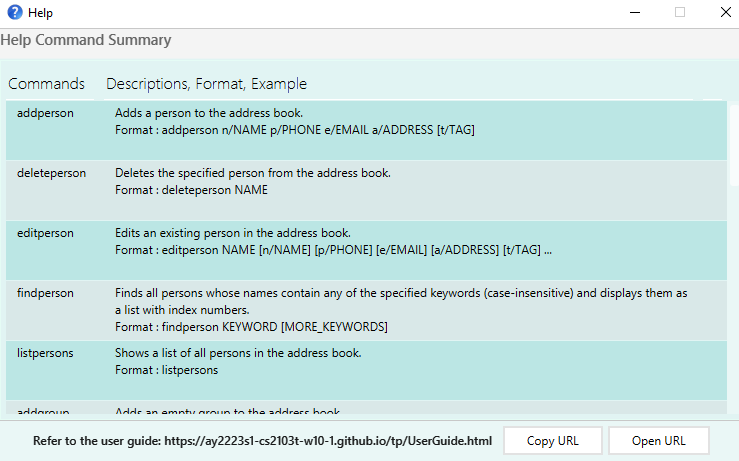
Format: help
3.4.2 Clearing all entries: clear
Clears all entries from TABS.
Format: clear
3.4.3 Exiting the program: exit
Exits the program.
Format: exit
4. Glossary
| Term | Meaning |
|---|---|
| Command-line interface(CLI) | An interface where the user interacts with the program with lines of text as commands |
| Graphical user interface(GUI) | An interface where the user interacts with the program through graphical icons |
| Persons | People that are stored in TABS, uniquely identified by their full name |
| Contacts | List of Persons with their personal details |
| Members | Copies of contacts that are added to groups |
| Groups | Consists of members |
| Tasks | Tasks that are assigned to members, consisting of workload and optional deadline |
| Workload | The estimated amount of work to be done by a member, gauged by low, medium or high |
| Deadline | The specified date the task has to be completed by |
5. Command summary
5.1 Contact Commands
| Action | Format, Examples |
|---|---|
| Add Person |
addperson n/NAME p/PHONE_NUMBER e/EMAIL a/ADDRESS [t/TAG]e.g. addperson n/Betsy Crowe t/friend e/betsycrowe@example.com a/Newgate Prison p/1234567
|
| Delete Person |
deleteperson NAMEe.g. deleteperson Betsy
|
| Edit Person |
editperson NAME [n/NAME] [p/PHONE_NUMBER] [e/EMAIL] [a/ADDRESS] [t/TAG]e.g. editperson Alex Yeoh n/James Lee e/jameslee@example.com
|
| Find Person |
findperson KEYWORD [MORE_KEYWORDS]e.g. findperson James Jake
|
| List Persons | listpersons |
5.2 Group Commands
| Action | Format, Examples |
|---|---|
| Add Group |
addgroup g/GROUP e.g. addgroup g/CS2103T
|
| Delete Group |
deletegroup g/GROUP e.g. deletegroup g/CS2103T
|
| Add Member |
addmember g/GROUP n/NAME e.g. addmember g/CS2101 n/Alice
|
| Delete Member |
deletemember g/GROUP n/NAME e.g. deletemember g/CS2101 n/Alice
|
| Display Group |
displaygroup GROUP e.g. displaygroup CS2103T
|
| List Groups | listgroups |
5.3 Task Commands
| Action | Format, Examples |
|---|---|
| Assign Task |
assigntask NAME g/GROUP task/TASK w/WORKLOAD [d/DEADLINE] e.g. assigntask Alice g/Group Alpha task/Coursework 0 w/Low d/2022-01-01 23:59
|
| Delete Task |
deletetask NAME g/GROUP task/TASK e.g. deletetask John g/CS2103T task/TeamProject
|
| Assign Task All |
assigntaskall g/GROUP task/TASK w/WORKLOAD [d/DEADLINE] e.g. assigntaskall g/Group Alpha task/Coursework 0 w/Low d/2022-01-01 23:59
|
| Delete Task All |
deletetaskall g/GROUP task/TASK e.g. deletetaskall g/CS2103T task/TeamProject
|
5.4 Miscellaneous Commands
| Action | Format, Examples |
|---|---|
| Help | help |
| Clear | clear |
| Exit | exit |